Test Post: Using “Level 1” Posts on the Home page (Level 1-1)
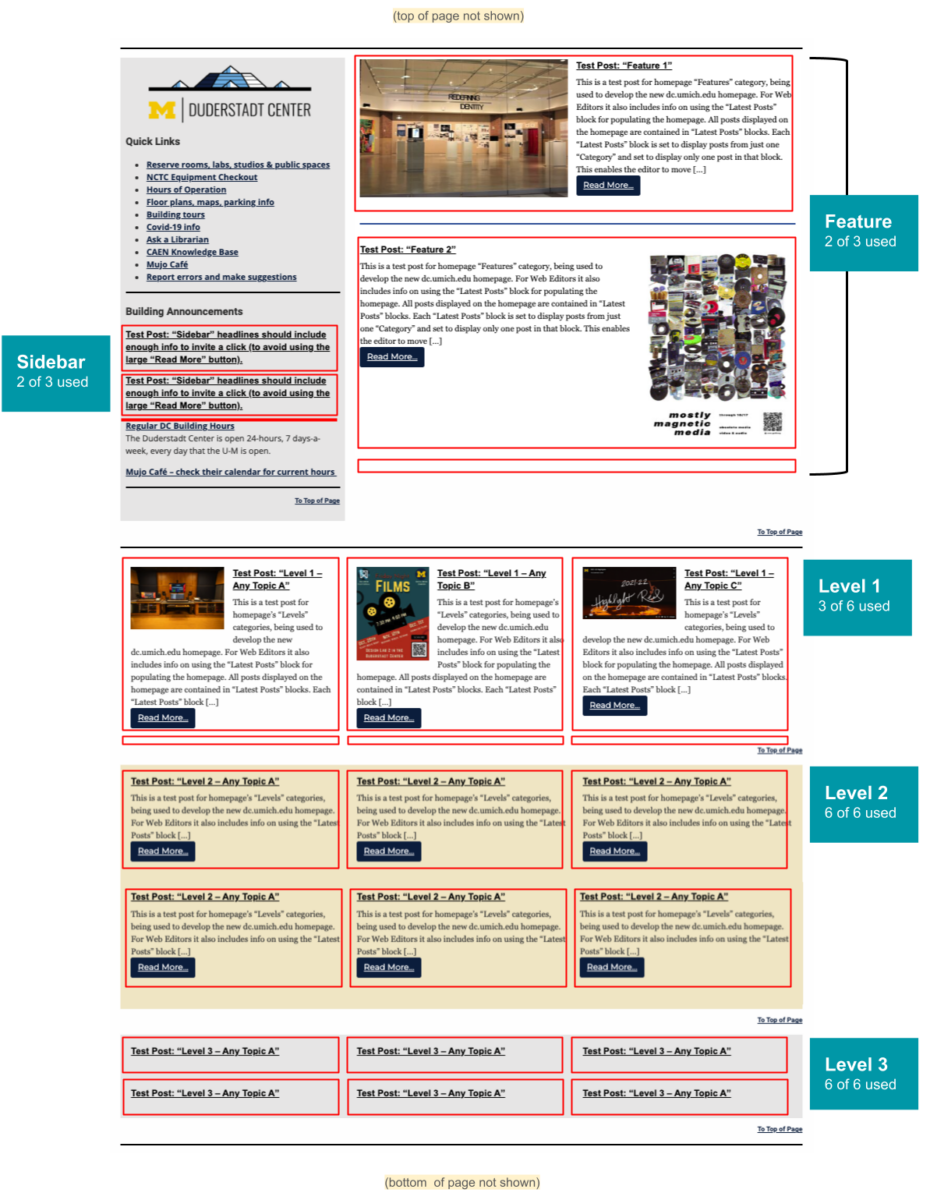
For Level 1 Posts there are by default spaces 6 total. This is a test post for the homepage’s “Level 1” Latest Posts category. For Web Editors it describes how to prepare posts for publication on the homepage. It also describes how the homepage is structured and settings the Homepage Editor will use to display…
For Level 1 Posts there are by default spaces 6 total.
This is a test post for the homepage’s “Level 1” Latest Posts category. For Web Editors it describes how to prepare posts for publication on the homepage. It also describes how the homepage is structured and settings the Homepage Editor will use to display it in one of five Latest Block sections of the homepage.
Level 1 posts are suggested for events notices, and for news including introduction of new spaces, technologies, policy notes.
By default, there are 6 placeholders for Level 1 posts on the homepage. The Homepage editor may add more if needed. If there are fewer than 6 posts, empty placeholders will not be visible.
Default setting for Level 1 posts:
Headline
50-word Excerpt
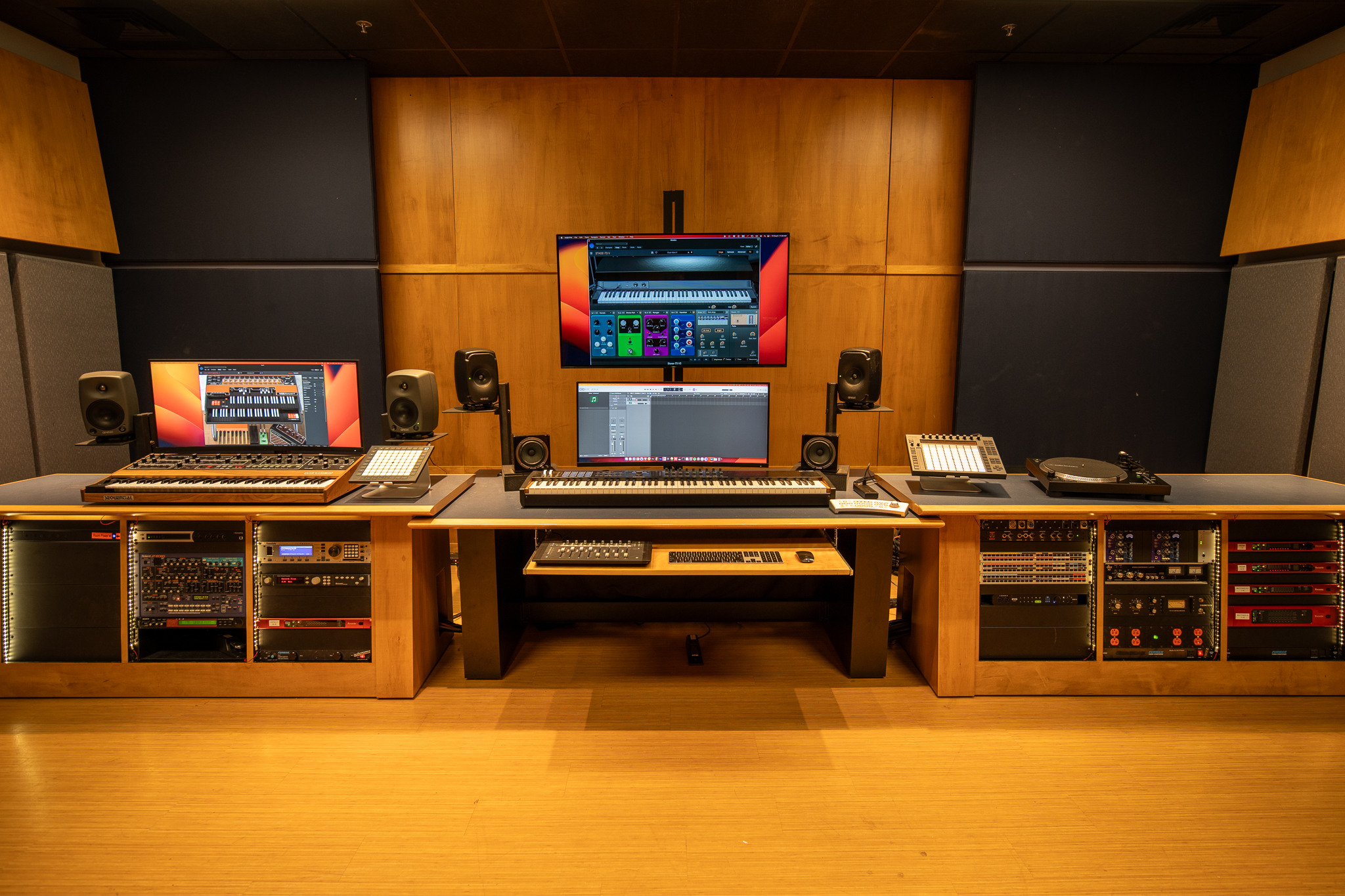
Thumbnail resolution image. Max display size is 180px high and/or 180px wide
Web Editors: When you have created a post that you wish to appear on the homepage:
While in Edit Mode, go to the settings menu in the right sidebar and select “Post” at the top.
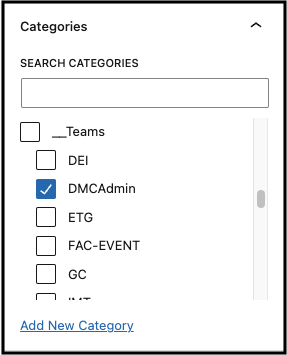
In the “Categories” setting, under SEARCH CATEGORIES scroll to “__Teams” and select your team’s category ID.
When your post is complete, publish it and send the Homepage Editor the link to your post (when in “View” mode) and suggestions for placing it on the homepage.
Any unused blocks only display when a post has been labeled with one of the above categories. An unused Latest Posts block will not be visible.
You have the option to add more Level 3 blocks – each will require creating a new Category with name format “Level 1-N”, with the “__Homepage Posts” as parent.
“Level 1″ Post Settings
“Level 1″ Post Settings
Excerpt = 50 words”
Image resolution = “Thumbnail” (this determines the quality level that will be used to create the actual image displayed on the page
Image size = 100% (which for a “Thumbnail” resolution will be max width of 180 px or max height of 180)
Image alignment Default = “Left” You can also set as “Right” (the other two options use a lot of extra space by putting the image on its own line.)