
Personal Studio
Dynamic production room for content publishers
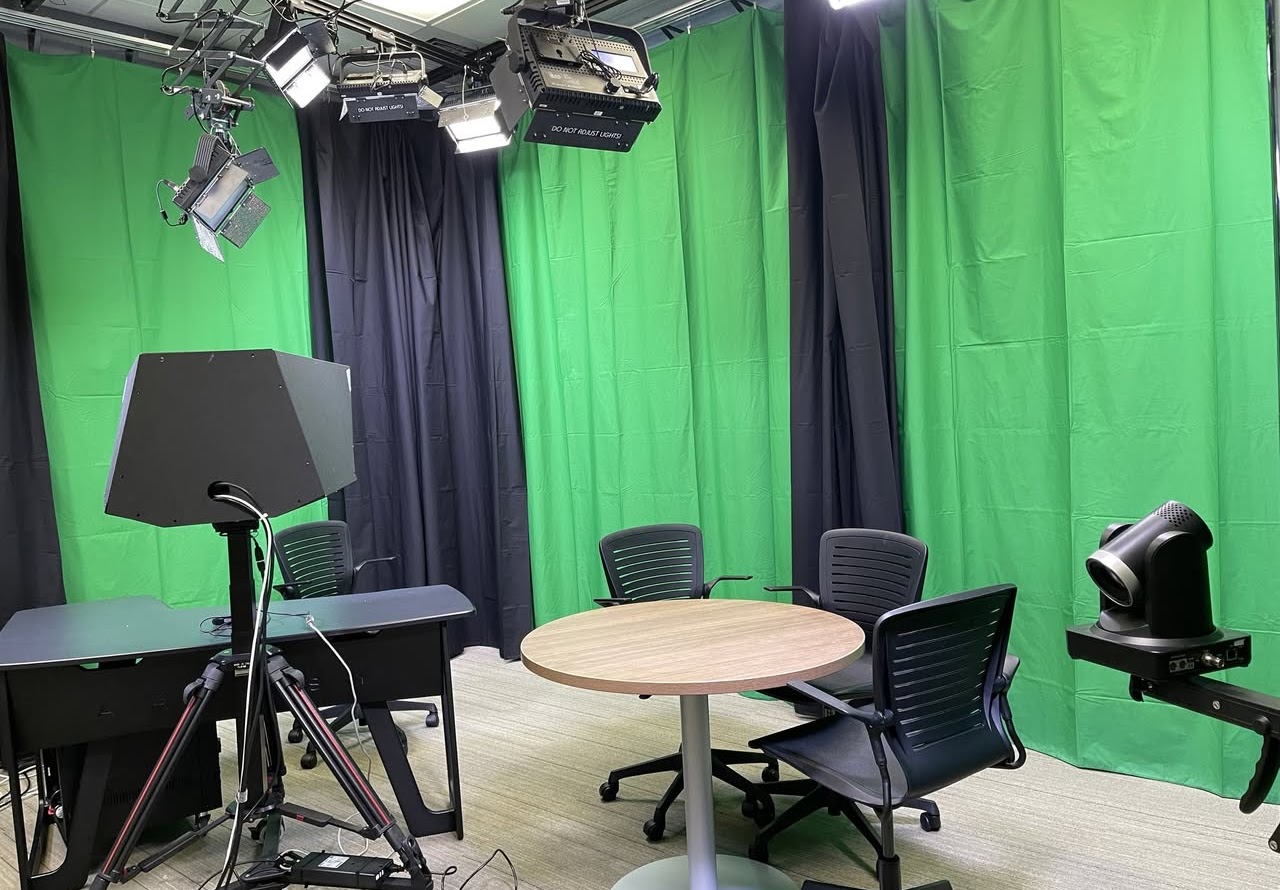
The Personal Studio is designed to create dynamic, publication-ready videos at the push of a button. This all-in-one, easy-to-use video production resource offers a teleprompter, backdrops, cameras, microphones, and preconfigured professional lighting. An intuitive touchscreen interface enables users to capture, stream, and edit videos in real-time. This system uses the versatile Wirecast software, which provides features such as shot selection, title overlays, picture-in-picture, chroma keying, annotation, and multiple inputs. This room is terrific for easy entry, multi-cam video production, video podcasting, pre-recorded presentations, or streaming.
Walk-in Hours: 24/7 (Reservation Only)
Location: 1120C, Duderstadt Center
Contact: [email protected]
Space Highlight
Get Access
The Personal Studio is built for creators who want to produce polished content with ease. Expand the sections below to learn how to get access and where to find support when you need it.
Who it’s for: U-M students, faculty, and staff
Steps to get access
- Complete the Personal Studio – Virtual Orientation in Canvas
- 24/7 reservation access to the room is granted 24 hours after submitting the documentation at the end of the course.
The Personal Studio Knowledge Base has instructional material, tips and tricks, as well as troubleshooting information.
The DC support staff are ready to consult and help guide you through your production process. For assistance or consultation please email [email protected]
Large groups, including classes, departments, and student organizations, can schedule in person workshops by emailing [email protected].
Explore Resources
Explore the Personal Studio’s core production setup—cameras, computers, and interfaces that power recording, streaming, and real-time editing.
OBSBot 4k Cameras
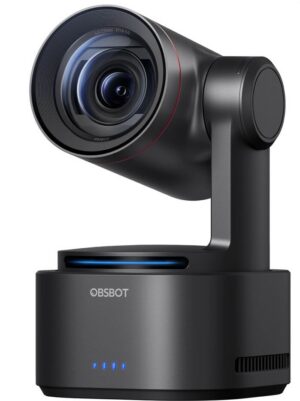
The Personal Studio has 4 OBSBot Tail 2 4k network driven cameras (NDI technology). The cameras have auto tracking to follow you as you move around.
Teleprompter (CAM1)
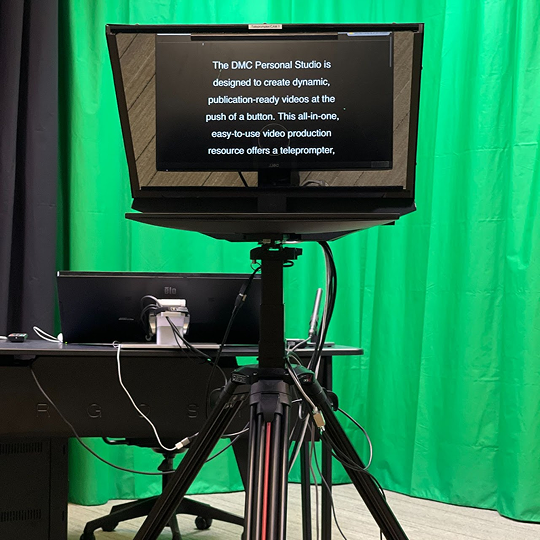
The teleprompter lets you read a script, view slides, or follow on-screen instructions while still looking directly into the camera. It works using one-way glass that reflects content from the Presenter Computer, with the camera positioned behind the glass.
Note: please don’t adjust the glass, as it’s fragile. You may reposition the camera and adjust teleprompter height with the wired controller, but avoid pulling cables and keep slack in the wiring.
Presenter Camera (CAM2)
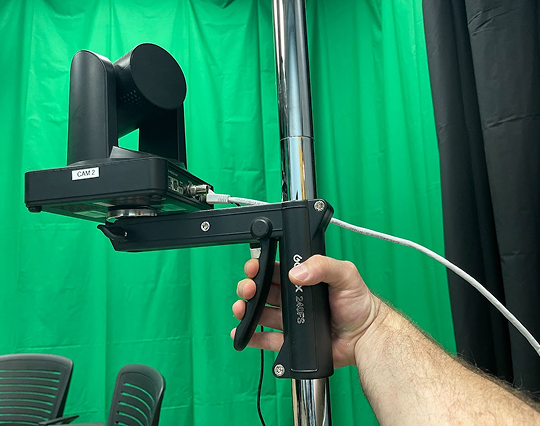
The Presenter Camera (Cam2) is the second rolling stand and can be used for a secondary angle, such as a close-up interview shot or an object demo. Adjust the height by squeezing the pistol-grip handle, and reposition the camera as needed—just be sure the cables aren’t pulled tight. Cables are routed along the curtain line with Velcro management; you may adjust this during your session, but please restore the cable path and Velcro before leaving.
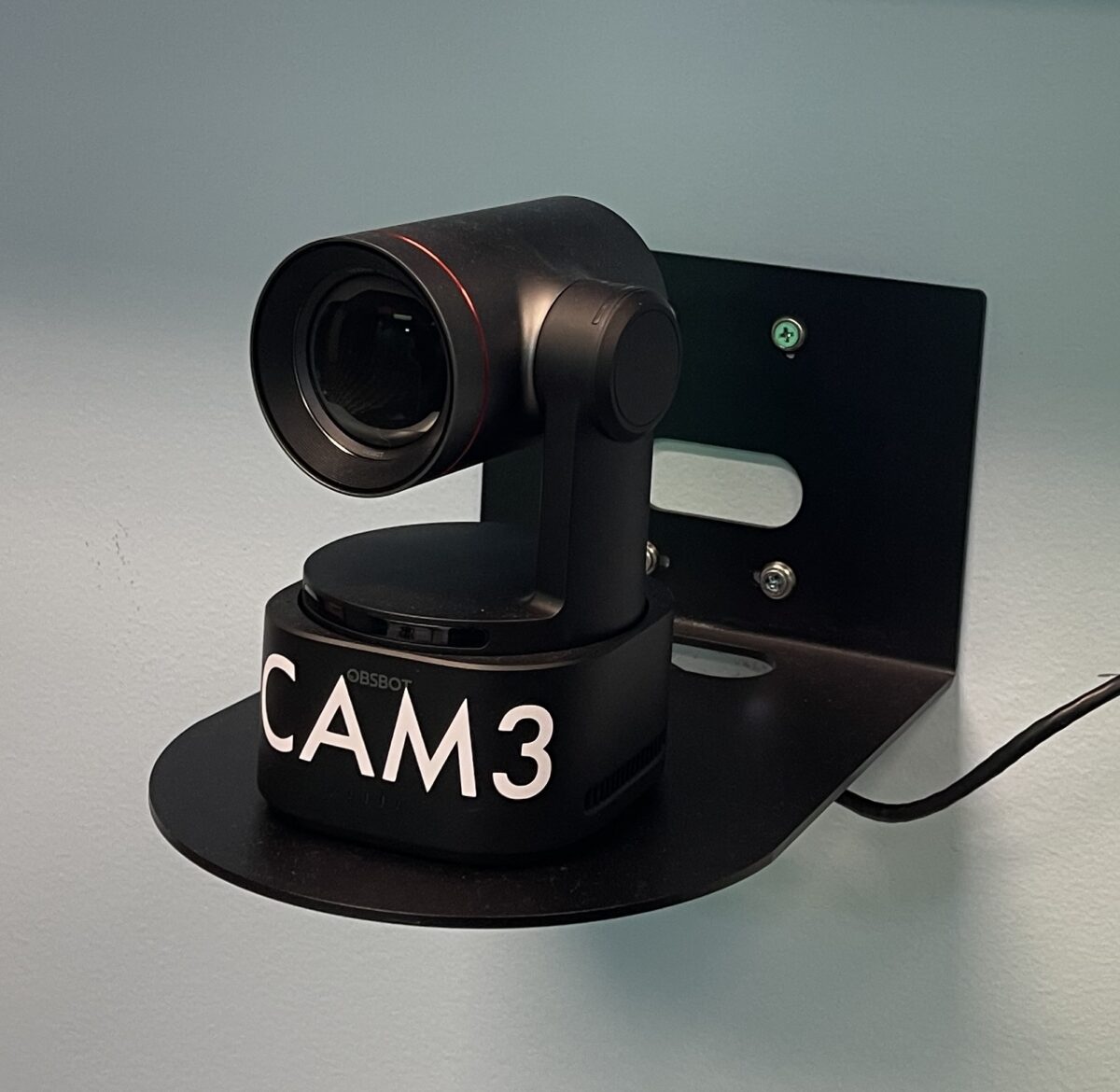
CAM 3
The front facing “CAM 3” is ideal for a medium shot of people seated at the round table in the Personal Studio.
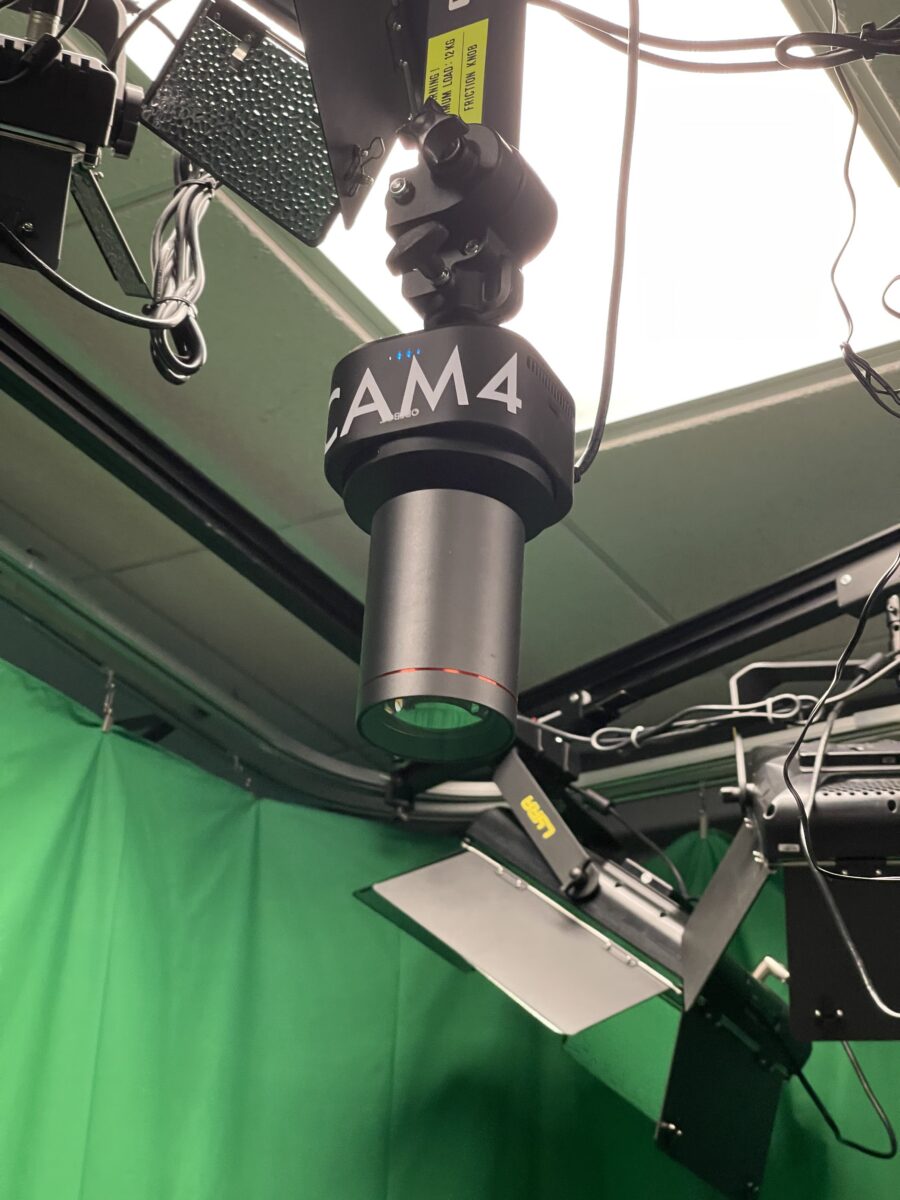
Ceiling Camera (CAM4)
Added in January 2026 is a new “Ceiling Cam.” This downward facing camera is intended for hands on demonstrations, or anything where a camera positioned like this is useful.
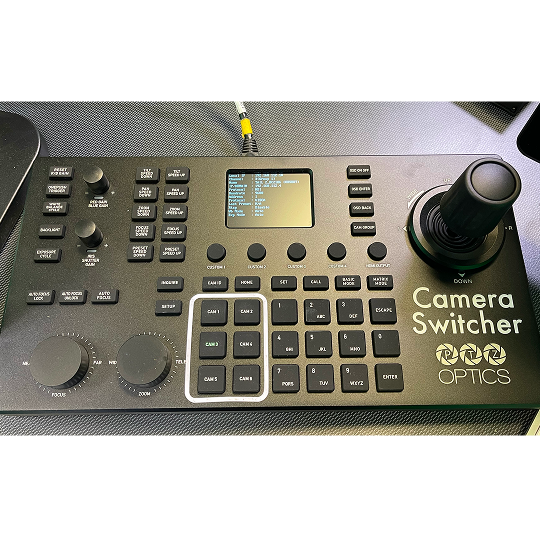
PTZOptics SuperJoy NDI Joystick Controller
Pan, Zoom, and focus the cameras with this single device. The joystick controller makes it easy to set up your shots for recording.*
*Cameras can also be controlled with the OBSBot Control interface on the Capture Computer.
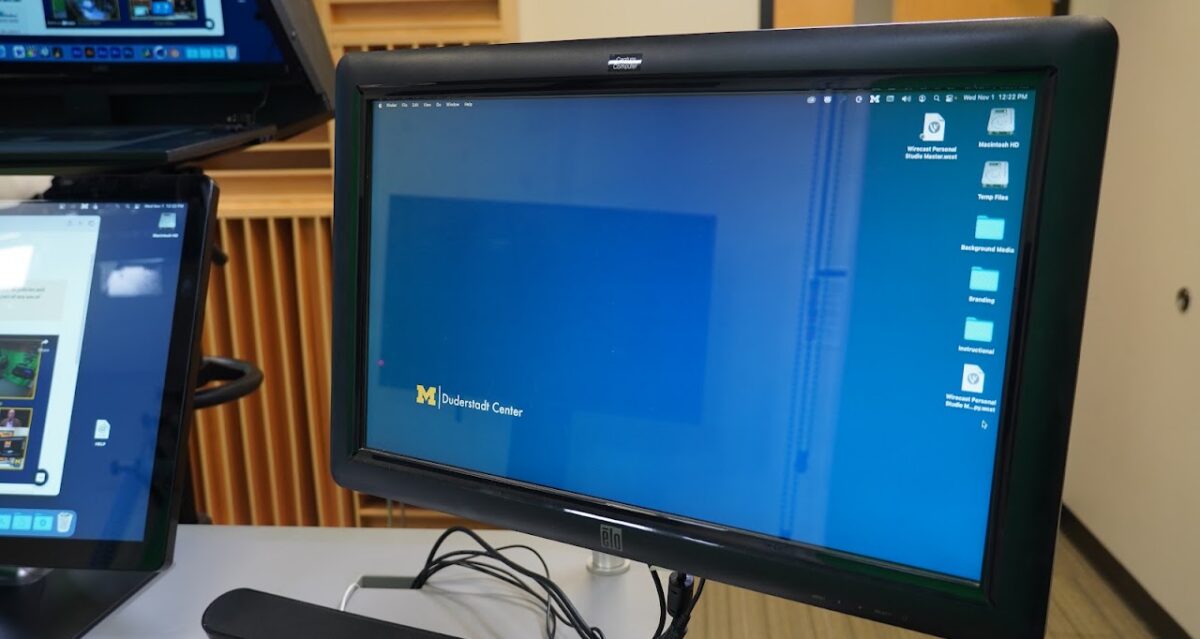
Capture Computer
The Capture computer is the brains of the room. This is where all the magic occurs. It uses an application called Wirecast for capturing the variety of inputs we have in the Personal Studio. Learn more in our Knowledge Base. The computer is a powerful Mac Studio, capable of recording whatever you throw at it. It has a large secondary drive for storing your recordings (temporarily).
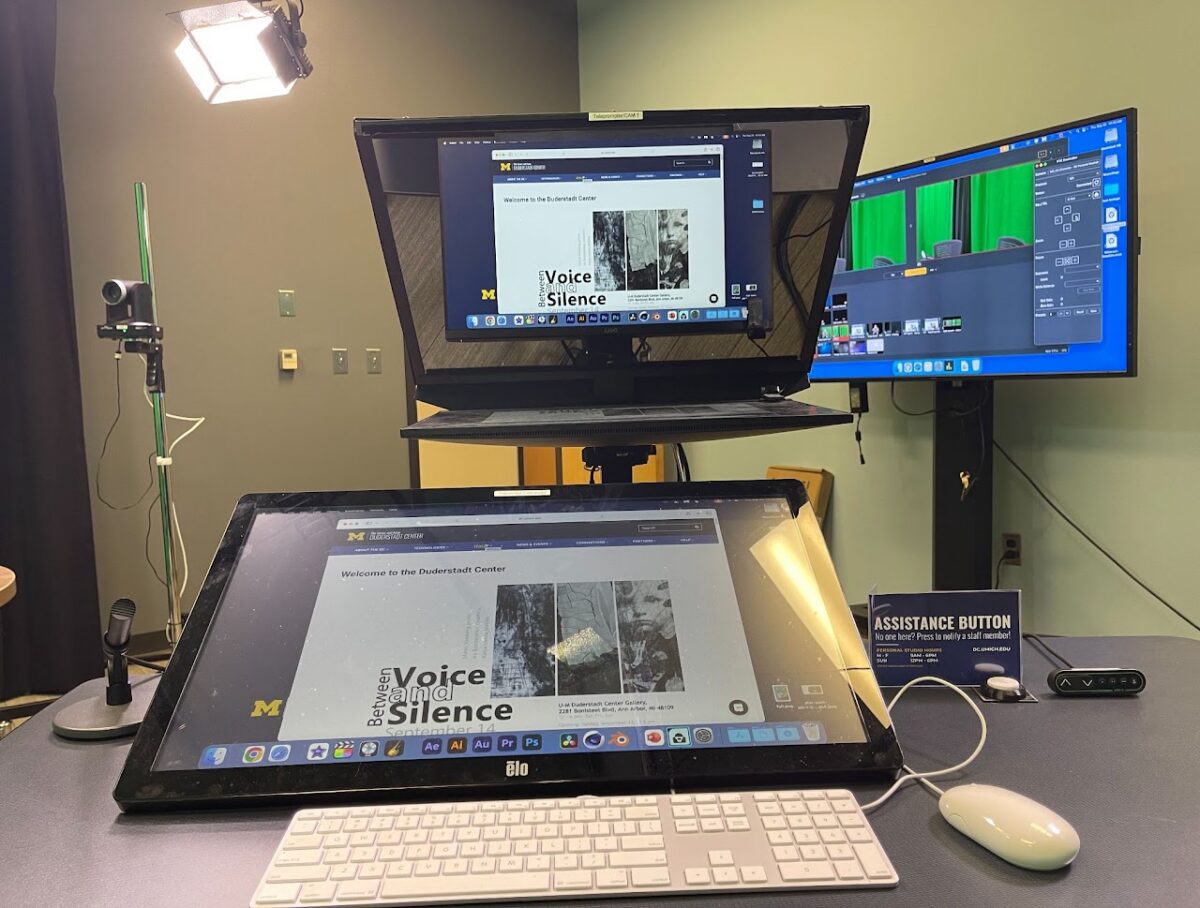
Presenter Computer
The Teleprompter allows you to see your slideshow, or script while looking at the Teleprompter (CAM1). This computer also includes the ability to annotate on the touch screen display. You can notate on the computer using the tools provided by the display.
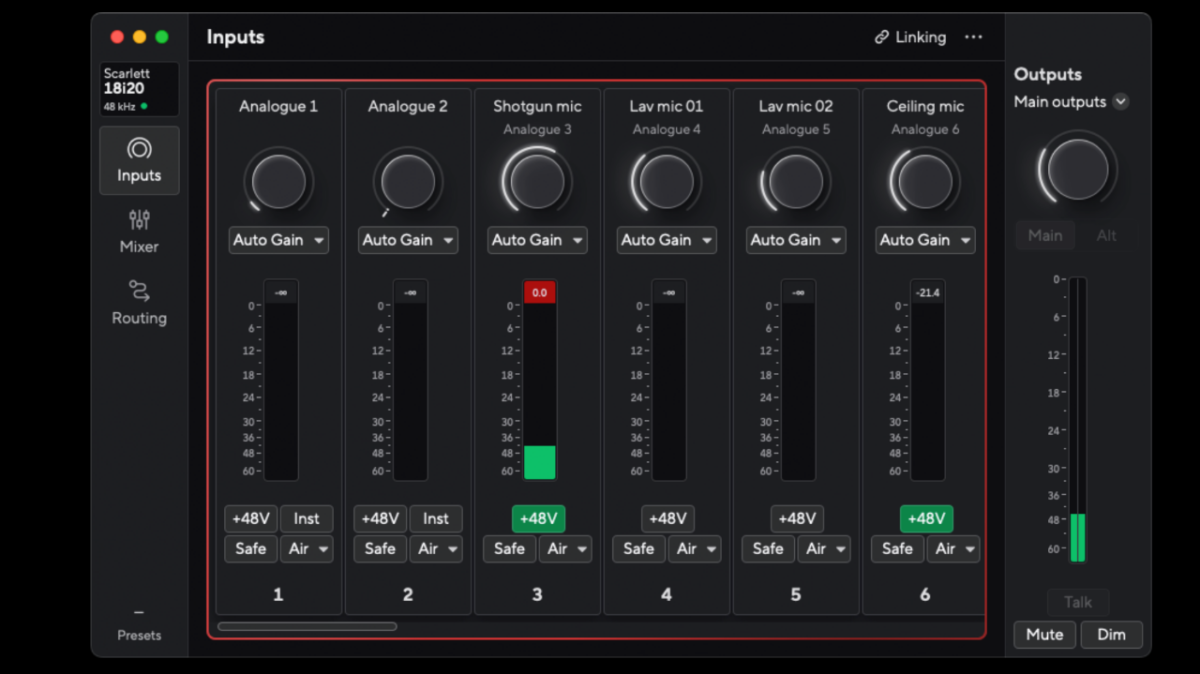
Focusrite 18i20
The microphones in the Personal Studio are controlled using the Focusrite 18i20 audio interface. It can control the 5 microphones that we provide as well as 2 auxiliary mic inputs if you prefer to include your own microphones. The mics are controlled at the Capture Computer using the Focusrite Control interface.
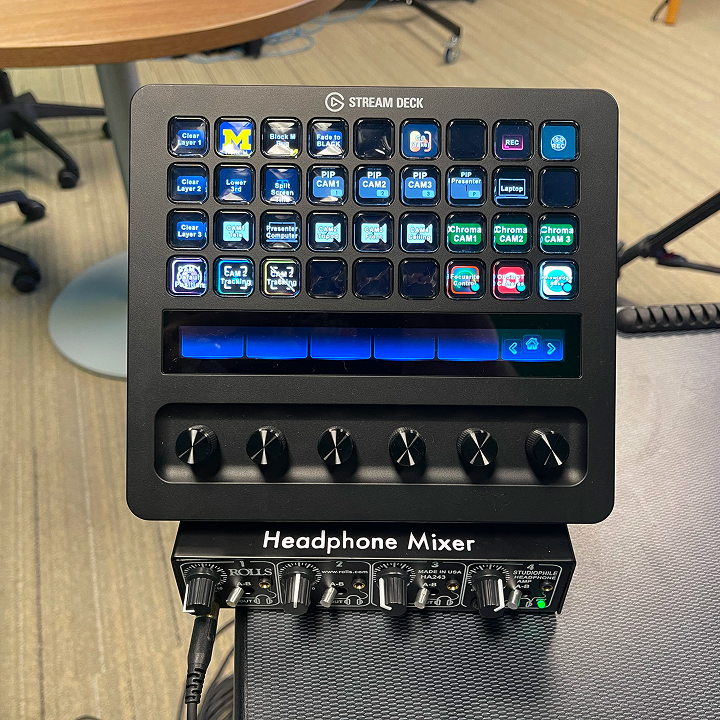
Streamdeck
The Streamdeck is a control system set up to help control the features of the Personal Studio. Users have basic control of Wirecast and the cameras in the room. You can also start and stop your recording from the deck.
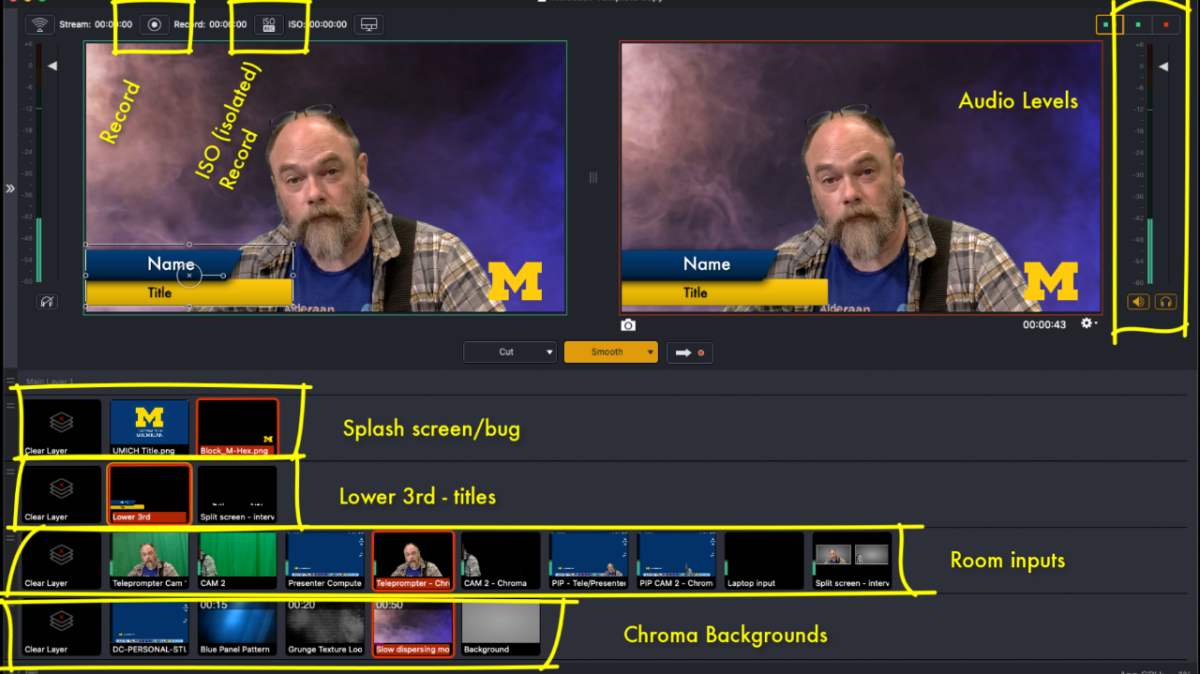
Wirecast
Everything in the Personal Studio is connected to the Capture Computer and is managed through the Wirecast video switcher and live streaming app. While recording, you can switch between all the cameras, Presenter Computer, and an aux laptop input. It has lower 3rd titles, green screen functions, and is fully configurable to combine any of the inputs to look the way you want.
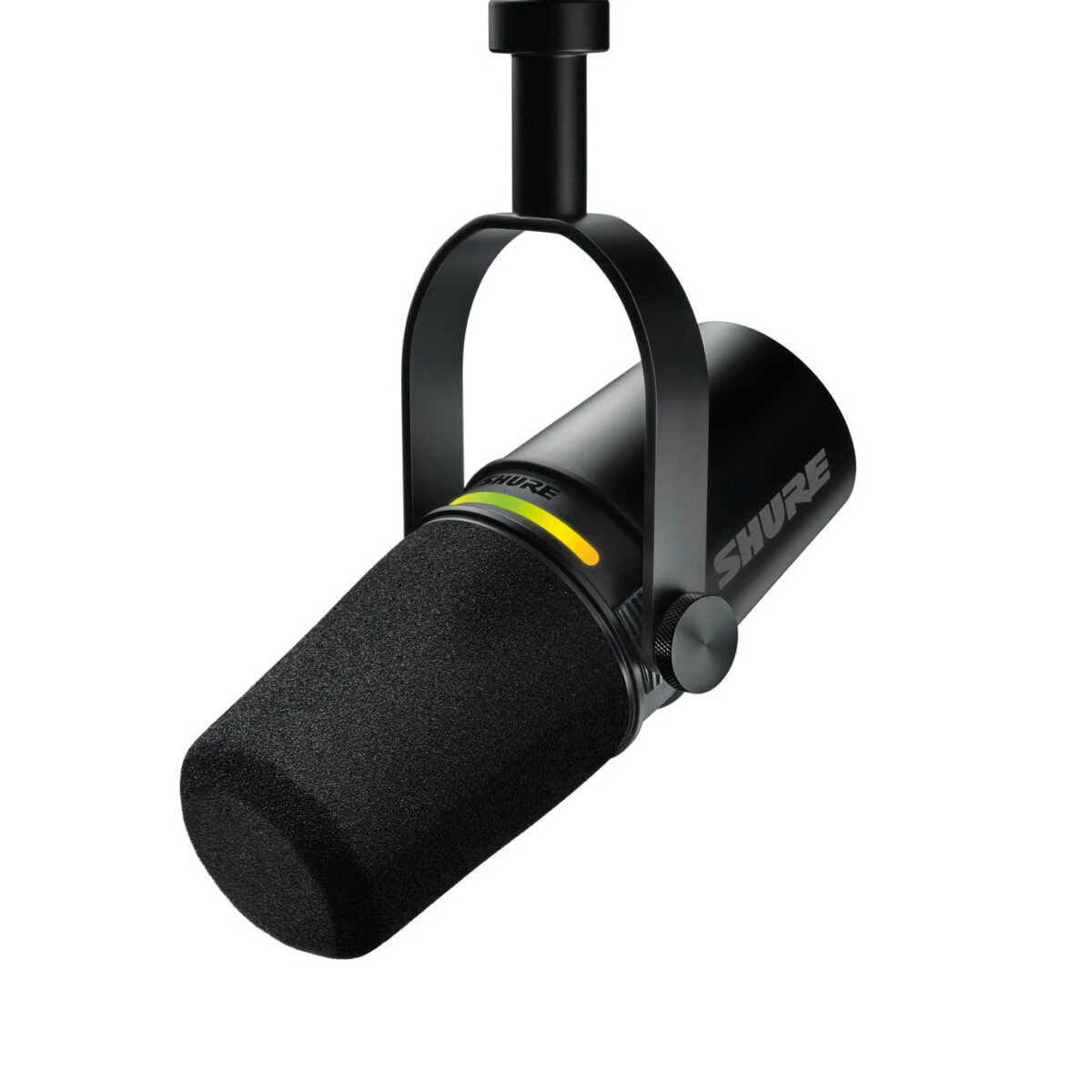
Shure MV7+ Microphones
The studio has 4 Shure MV7+ microphones. The MV7+ is a standard in podcasting today. It works very well for capturing your presentation with high quality sound.
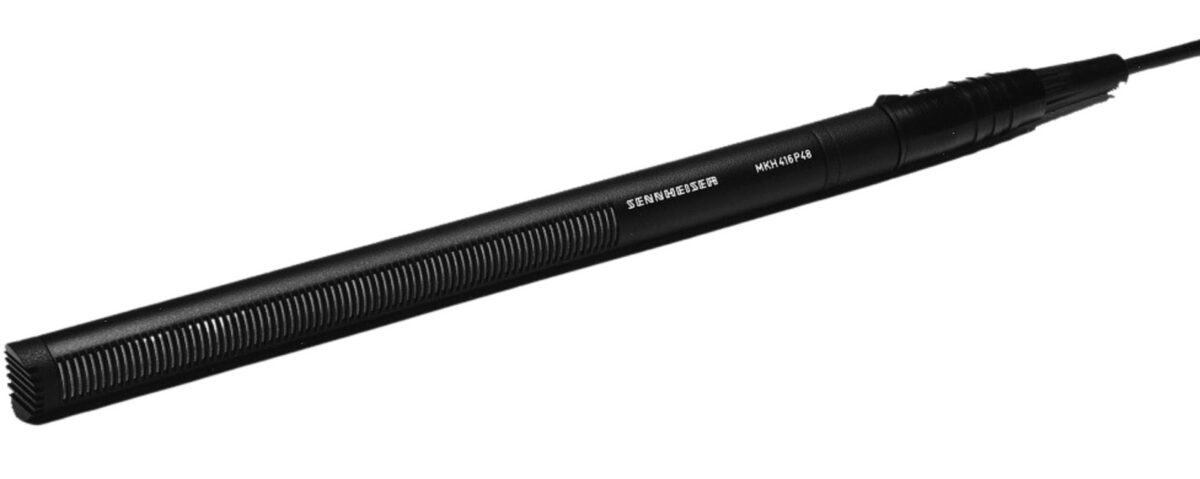
Sennheiser MKH416
The Sennheiser MKH416 is now mounted to the lighting grid of the studio. This mic is great for picking up sound from several feet away. It has a pan, tilt controller on the main desk in the room, so it can be pointed wherever you plan to present. This mic is well suited for monologs, or presentations where you do not want to sit behind a desk with a mic in your face.
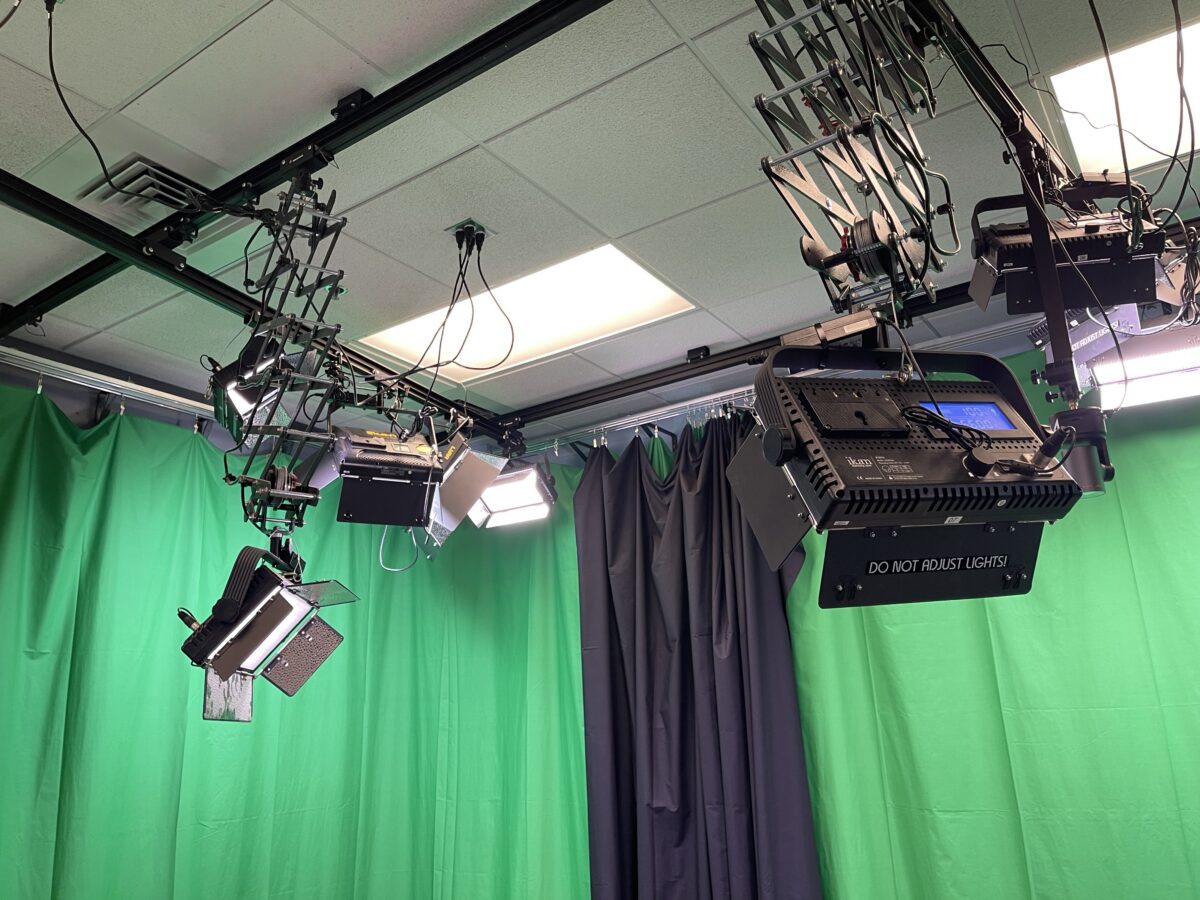
Lighting
The Personal Studio has all the lights set up and ready to go when you enter the room. They light both the person and curtains in the room so you can look your best while recording.
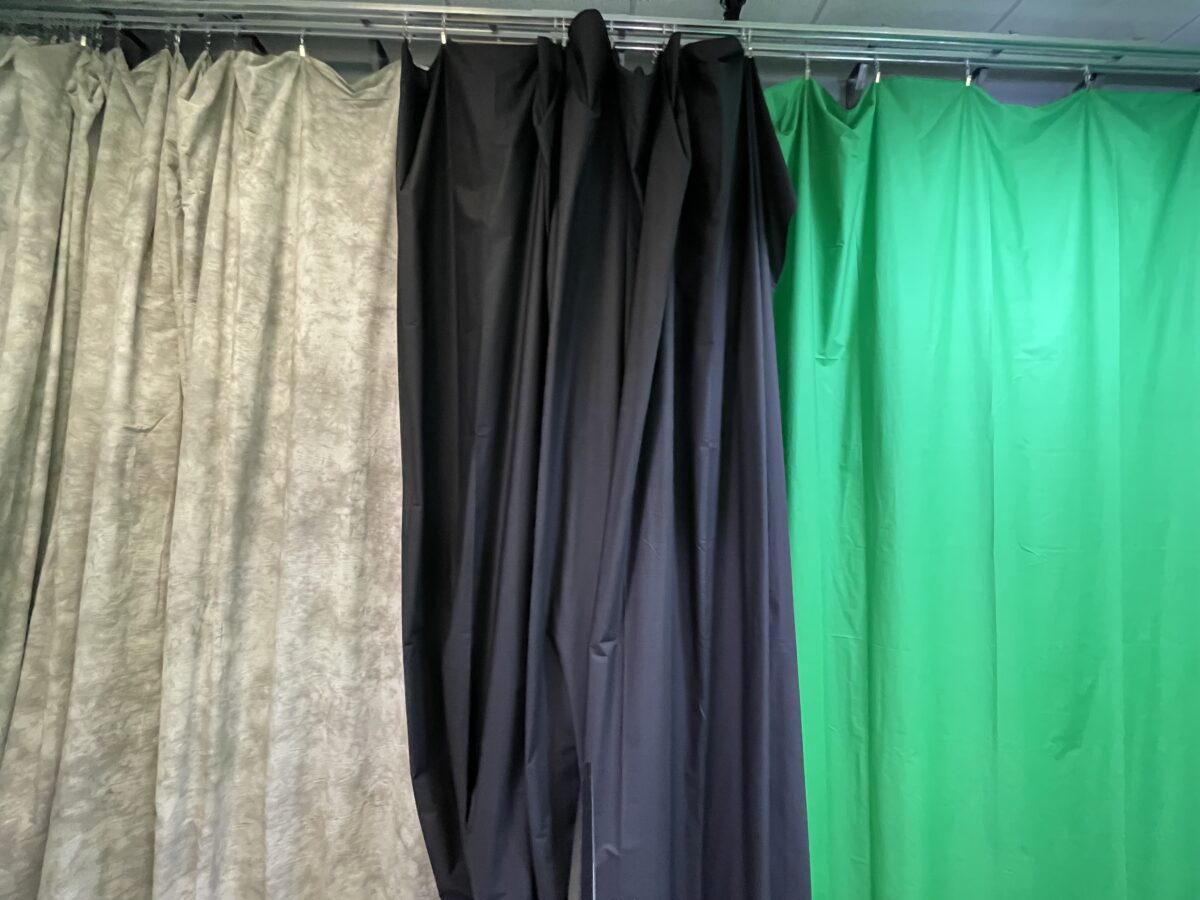
Curtains
The personal Studio has multiple curtain backdrops for you to take advantage of. This includes a green screen curtain allowing you to remove the green color and insert any background you like.

“REC” and “ISO REC” modes
Though an advanced feature, the Personal Studio has the ability to record your switched production, which will change the camera’s angles each time you select one during recording (live-switched), as well as the ISO Record mode. ISO Rec can record each video input as a separate video file (4 cameras, Presenter Computer, and Laptop input). These can then be used to produce your entire production after it has been recorded using any video editing app. Both “Rec” and “ISO Rec” can be used at the same time.
Streaming
Another Advanced feature is the ability to live-stream from the Personal Studio. The system can connect to Zoom, Youtube, Twitch, etc. so you can produce live content, interviews, presentations, or webinars from this space. Allowing you to utilize all the features in the studio with your live production.
Policy & Safety
The safety is the top priority for using the Personal Studio. Please make sure you read and understand our policy and safety rules thoroughly before using the space. It is also included in the online orientation.
About Us
- Groundworks welcomes all U of M Students, faculty, & Staff.
- Groundworks is open and its resources are available whenever the Duderstadt Center is open.
- Activities conducted within the Groundworks must adhere to policies and guidelines outlined by the University of Michigan Standard Practice Guide.
- It is the responsibility of the User to adhere to the University guidelines found in SPG 601.28 regarding creation and ownership of media created in Groundworks. Use this QR Code to view SPG 601.28
Safety
- Users are not authorized to unplug, reconfigure, or rewire the equipment of the space.
- The computers are wiped regularly. You are responsible for your data.
- Hardware connected to computers in Groundworks have priority. If not using included hardware at a workstation, you may be asked to move.
Use
Groundworks is a collaboration area.
- Conversations are expected and accepted. Feel free to speak aloud to peers.
- Please be aware of your surroundings and be polite when either making noise or working around noise.
- Users are not permitted to hire out their services while using the Groundworks facilities.
When you leave:
- Before leaving Groundworks be sure to return tools to the consulting desk, clean up any mess you may have made, and take all project work and personal belongings with you.
- Unattended items will be turned over to Lost and Found or discarded.
- Groundworks staff is not responsible for the theft, damage, or misplacing of items.
Note: Access may be revoked for non-compliance with these policies.
General Policies
Staff
Ryan N. Wilcox
Manager, Groundworks/ Ground Connections